Your First Local AI on a Computle Workstation
Run a large language model on your own Computle Windows workstation in about ten minutes, with nothing sent to an outside AI service. A step-by-step guide for architects using Ollama.

Most practices have tried ChatGPT or Copilot by now. The question we hear most from architects is a simple one: can I use AI on project work without sending client drawings, briefs and fee letters to someone else's servers?
On a Computle workstation, you can. Every Windows workstation we provide has its own dedicated NVIDIA GPU, and that is exactly what a local AI model needs. This guide takes you from nothing to your first conversation with a model running entirely on your workstation, using a free tool called Ollama.
What you need
- A Computle Windows workstation.
- About ten minutes.
- No administrator rights. Ollama installs into your own user account.
Which model fits your workstation
Local models load into your GPU's memory, so the right model depends on your plan. Google's Gemma 4 is a good place to start: it is free, it reads images as well as text, and it comes in sizes for every Computle GPU.
| Computle plan | GPU memory | Start with | Download size |
|---|---|---|---|
| RTX 5050 | 8 GB | gemma4:e2b | 4.6 to 7.5 GB |
| RTX 5070 | 12 GB | gemma4:12b | 7.7 to 8.0 GB |
| RTX 5080 | 16 GB | gemma4:12b | 7.7 to 8.0 GB |
| RTX 5090 | 32 GB | gemma4:26b or gemma4:31b | 16 to 20 GB |
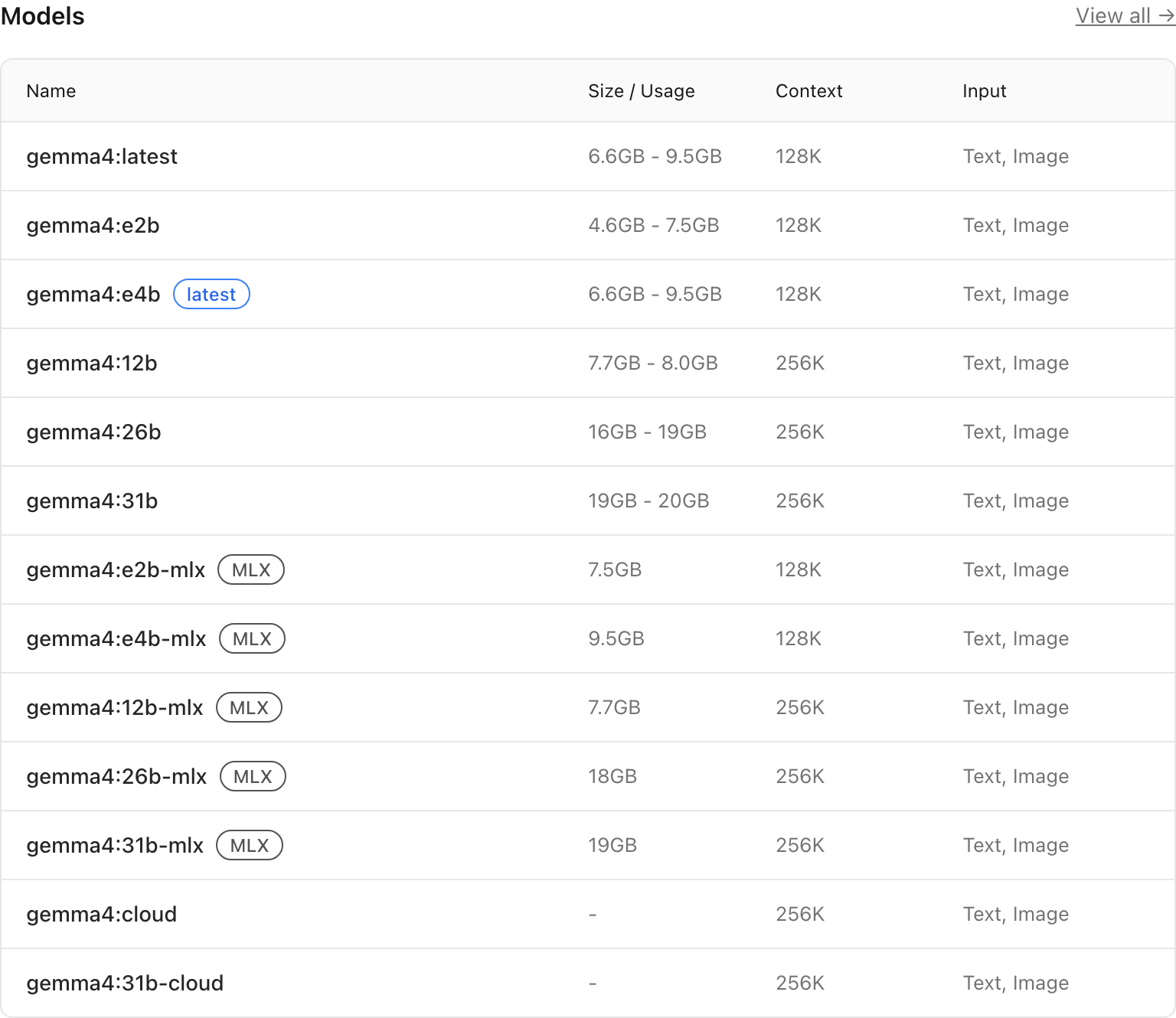
Your GPU also runs Revit, Enscape, Twinmotion and everything else on screen, so leave some headroom. If you are about to render, close the model first (see the commands below). Ollama also unloads a model by itself after five minutes of not being used.
Step 1: Install Ollama
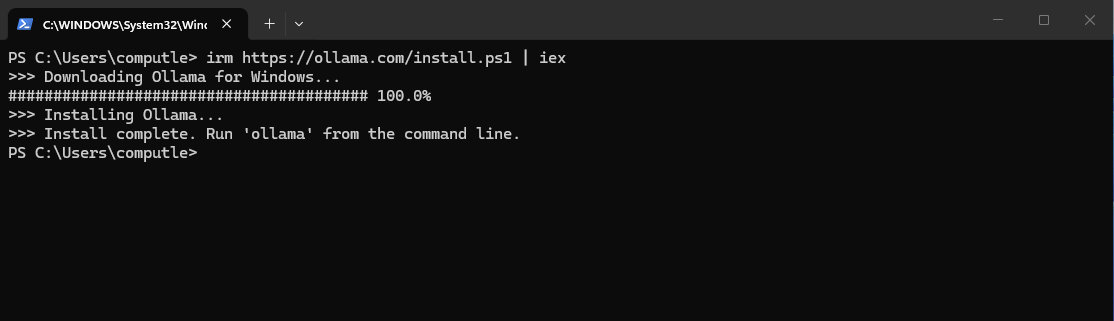
Open the Start menu on your workstation, type PowerShell and open it. Paste this line and press Enter:
irm https://ollama.com/install.ps1 | iex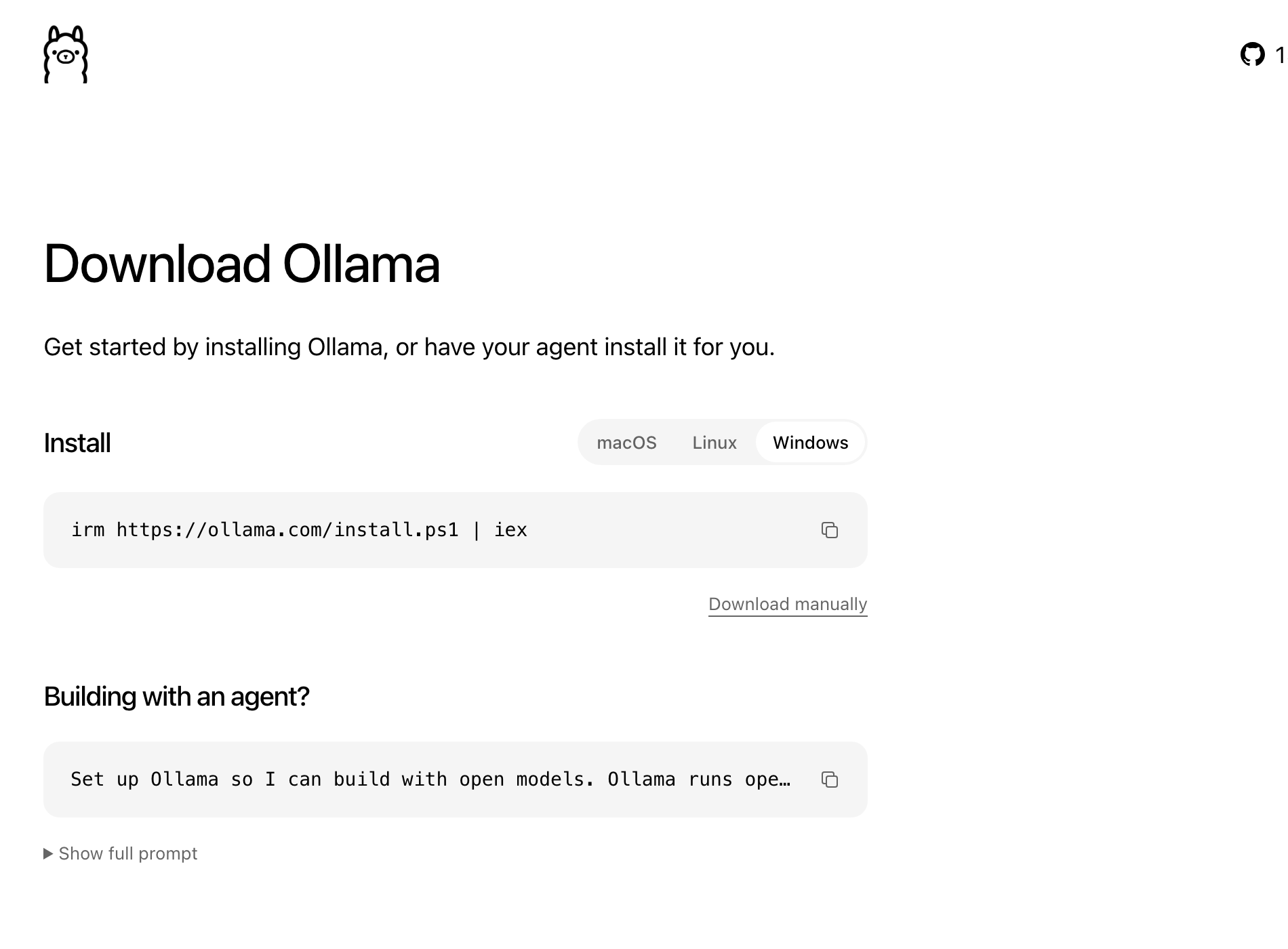
The download and install take a minute or two. When it says Install complete, you are done.
Step 2: Choose a local model
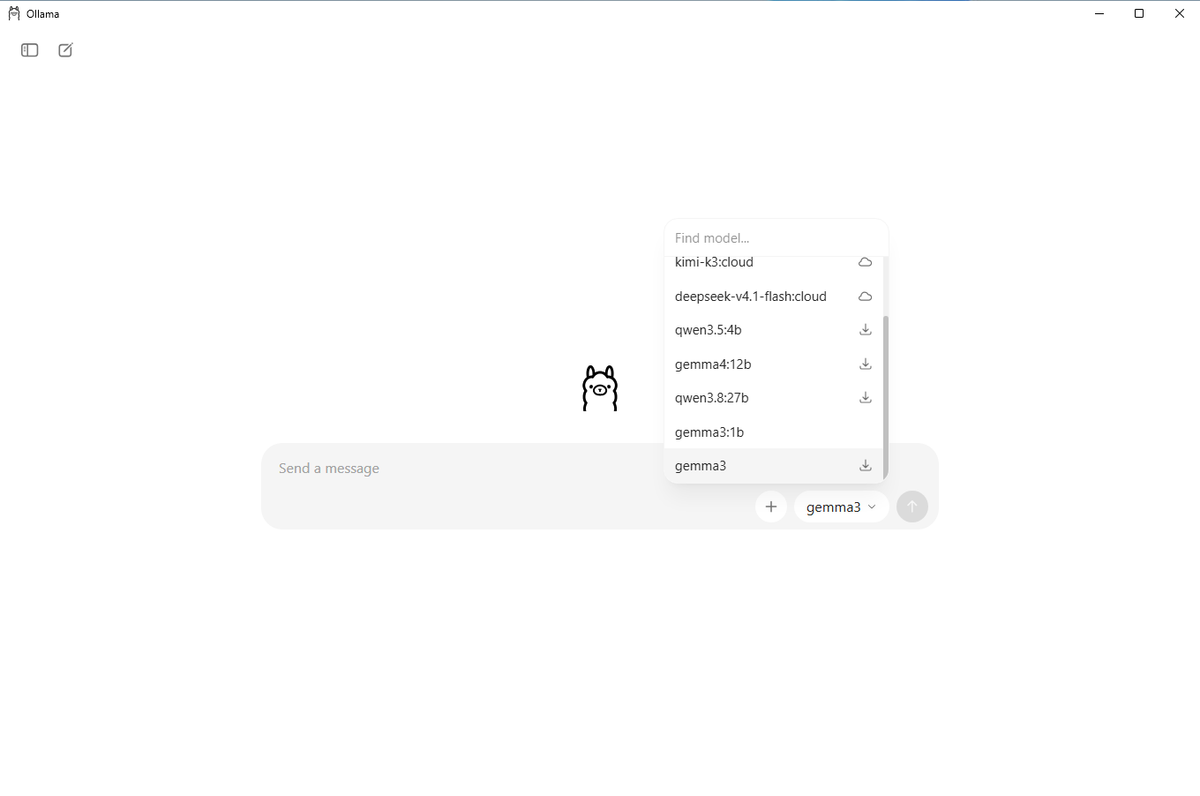
Open Ollama from the Start menu and start a new chat. Click the model name next to the send button to see the list.
This is the one setting that matters. Models with a cloud icon run on Ollama's own servers, need an Ollama account, and send your prompts over the internet. Models with a download icon run on your workstation. For project work, always choose a model with the download icon.
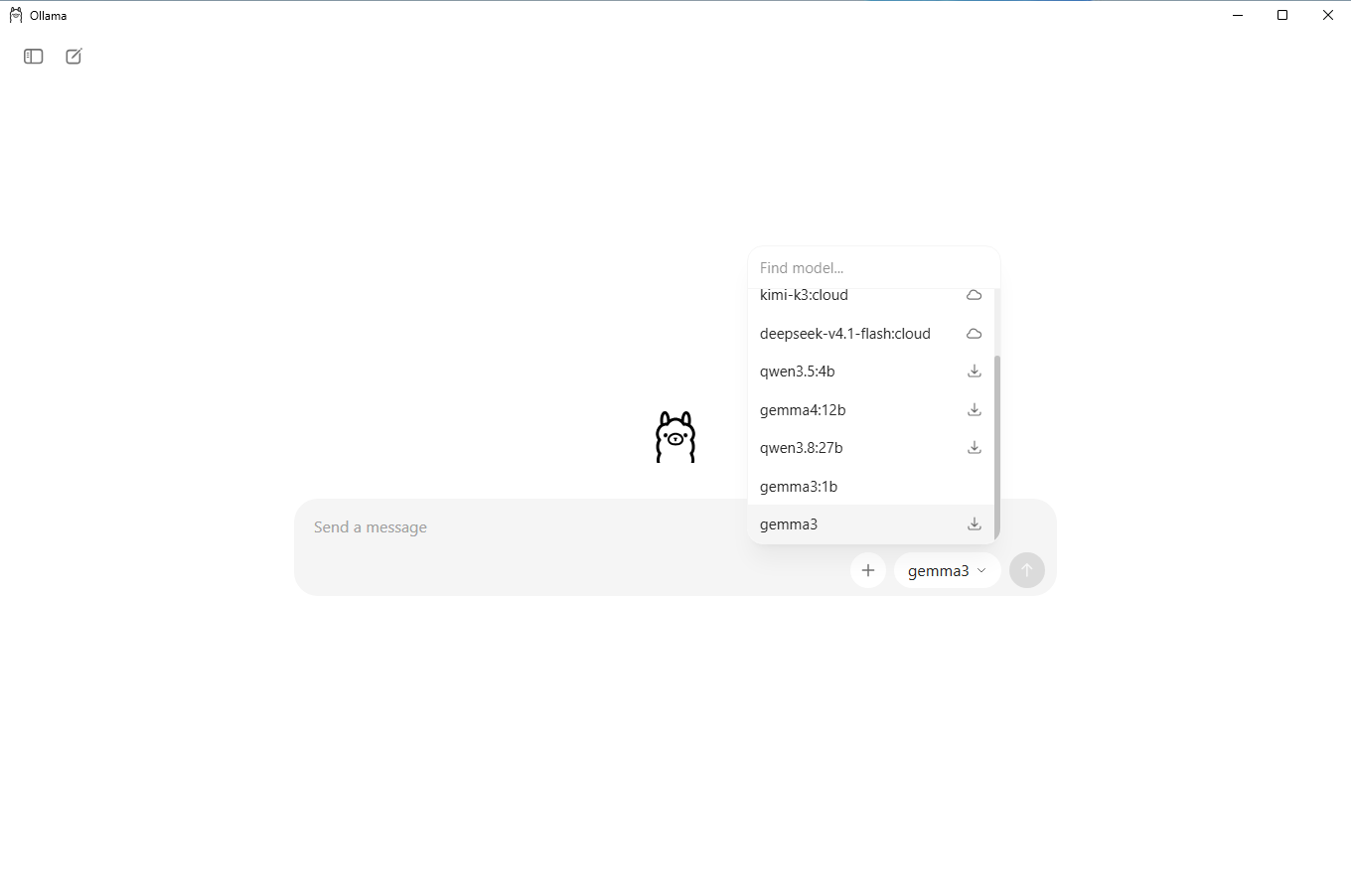
Pick the model from the table above. The first message you send downloads it, which takes a few minutes once, and after that it starts in seconds.
Step 3: Ask it something
Treat it like a capable assistant that has read a great deal but has never seen your project. Some good first tasks:
- Turn rough meeting notes into a tidy summary with actions.
- Draft a first pass of a design and access statement paragraph, then edit it yourself.
- Summarise a long planning policy or consultation response.
- Rewrite a fee proposal email so it is shorter and clearer.
- Explain a Building Regulations requirement in plain English for a client.
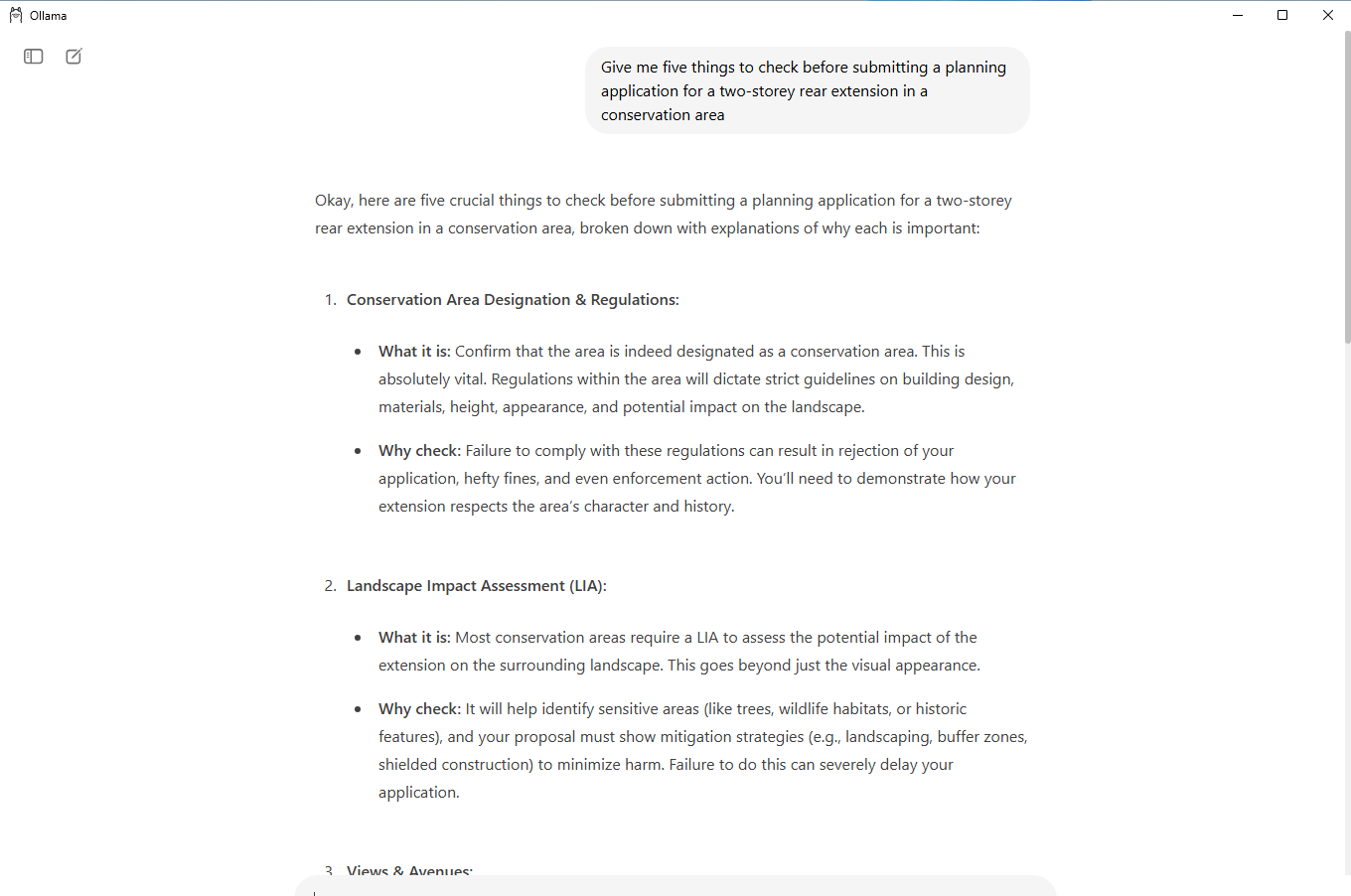
Check what it tells you. Local models are good at drafting, summarising and rewording, but they can state things confidently that are wrong, especially regulations, dates and figures. Use it to get to a first draft faster, not as a source.
Optional: the command line
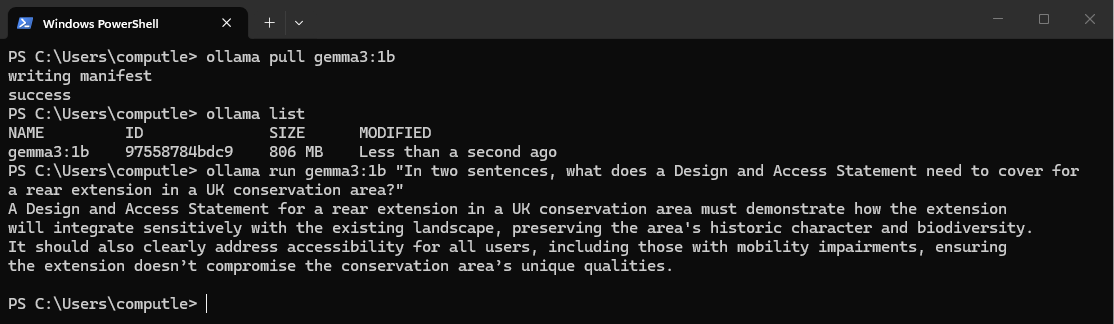
Everything in the app also works from PowerShell, which is handy for checking what is installed or freeing GPU memory before a render.
ollama pull gemma4:12b      download a model
ollama list                 show the models on this workstation
ollama run gemma4:12b       chat in the terminal
ollama ps                   show which model is loaded right now
ollama stop gemma4:12b      unload it and free the GPU memory
ollama rm gemma4:12b        delete a model you no longer need